

Desktop update
Desktop-only: this is the Electron app on macOS, not a web surface. There is no web-UAT route for it — when this page names a notice or control, the app UI is the source of truth for the exact wording.
The desktop app updates itself in four states: available, ready, blocked, and retry. Available means a new build is staged; ready means the app has confirmed it is safe to restart; blocked means something holds the restart; retry means a previous attempt failed and the app is recovering. The member’s job is the same in every state — get to restart-safe, restart once from the notice, confirm the app came back.
Available: a new build is staged
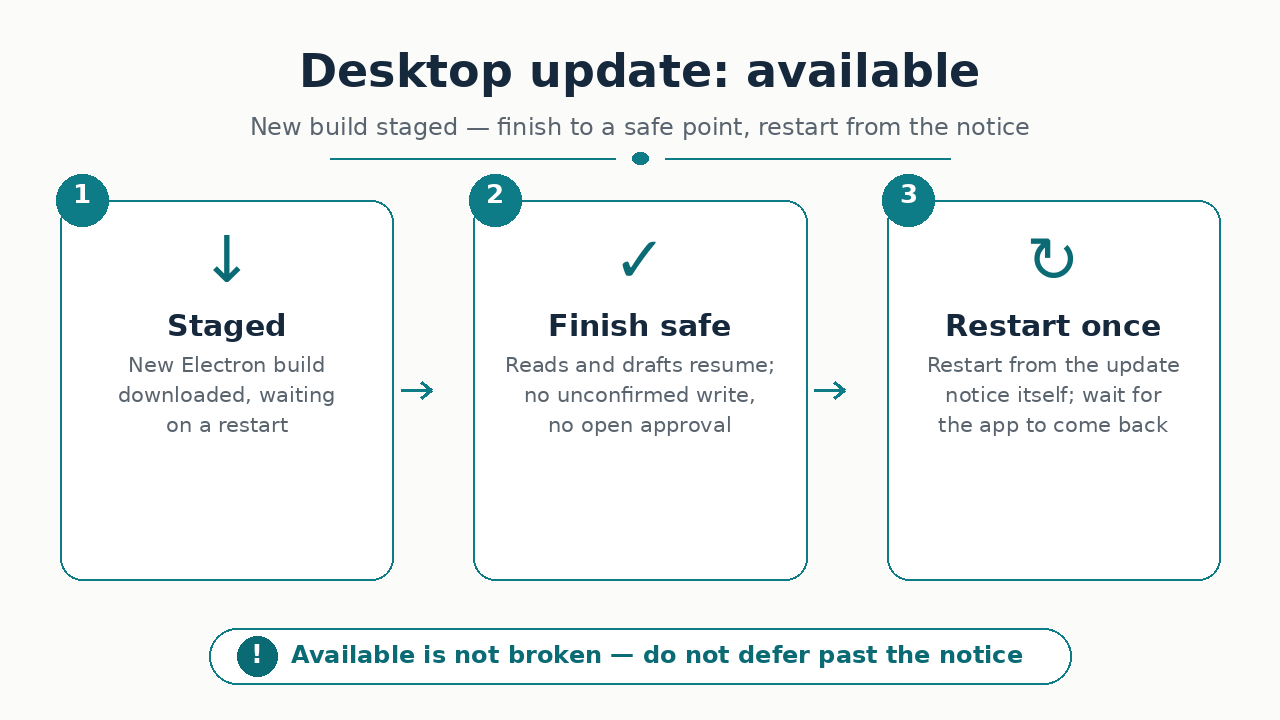
Section titled “Available: a new build is staged”- An available notice means the next build is downloaded and waiting on a restart — not that anything is broken. Finish to a safe point, then restart; do not keep deferring past what the notice allows.
- A session in flight is the only thing that makes a restart unsafe. Reads and drafts in the transcript are resumable; an unconfirmed write or an awaiting approval is not a state to restart through.
Ready: restart-safe, then restart
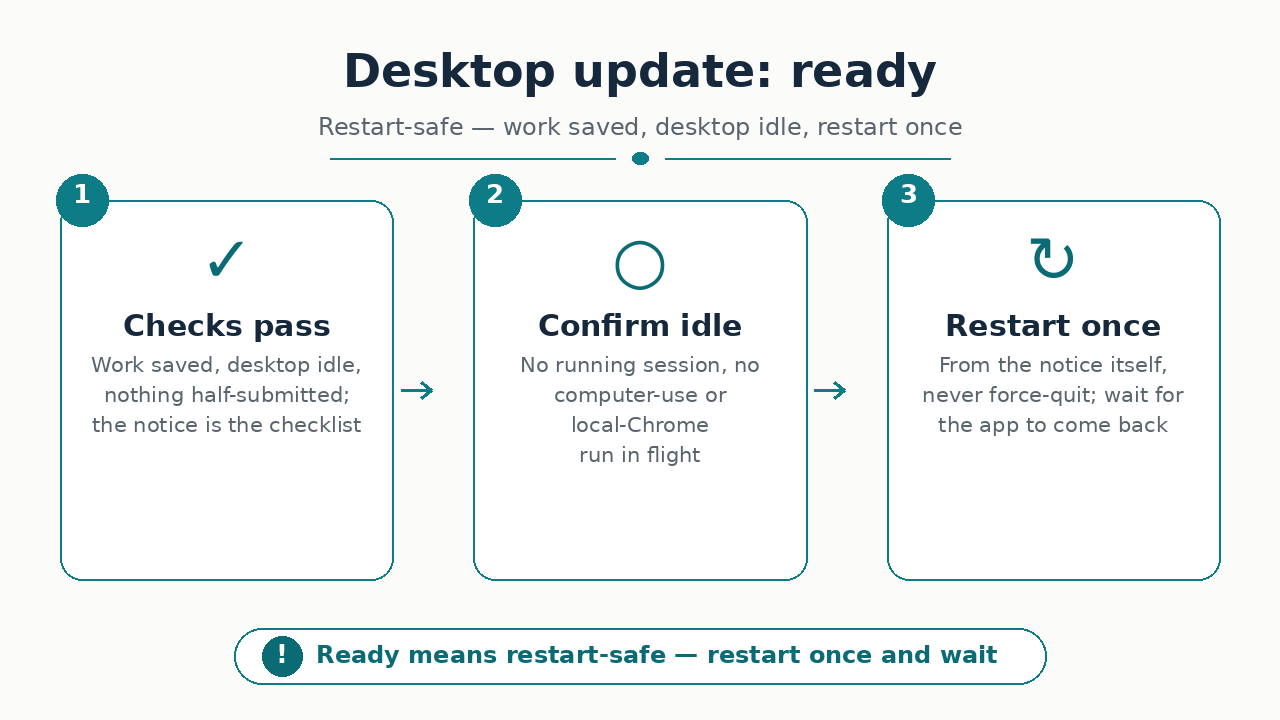
Section titled “Ready: restart-safe, then restart”- Ready means the app’s own checks pass: work saved, desktop idle, nothing half-submitted. If the notice names its conditions, satisfy them literally — the notice is the checklist; this page is the habit behind it.
- Confirm the desktop is idle before restarting: no running session, no computer-use or local-Chrome run in flight. A busy desktop is a stop-and-wait, not a restart-now.
- Restart from the update notice itself, not by force-quitting. A safe restart lets the app finish what it started; a force-quit turns a routine update into recovery work. Restart once and wait for the app to come back on its own.
Blocked: clear what holds the restart
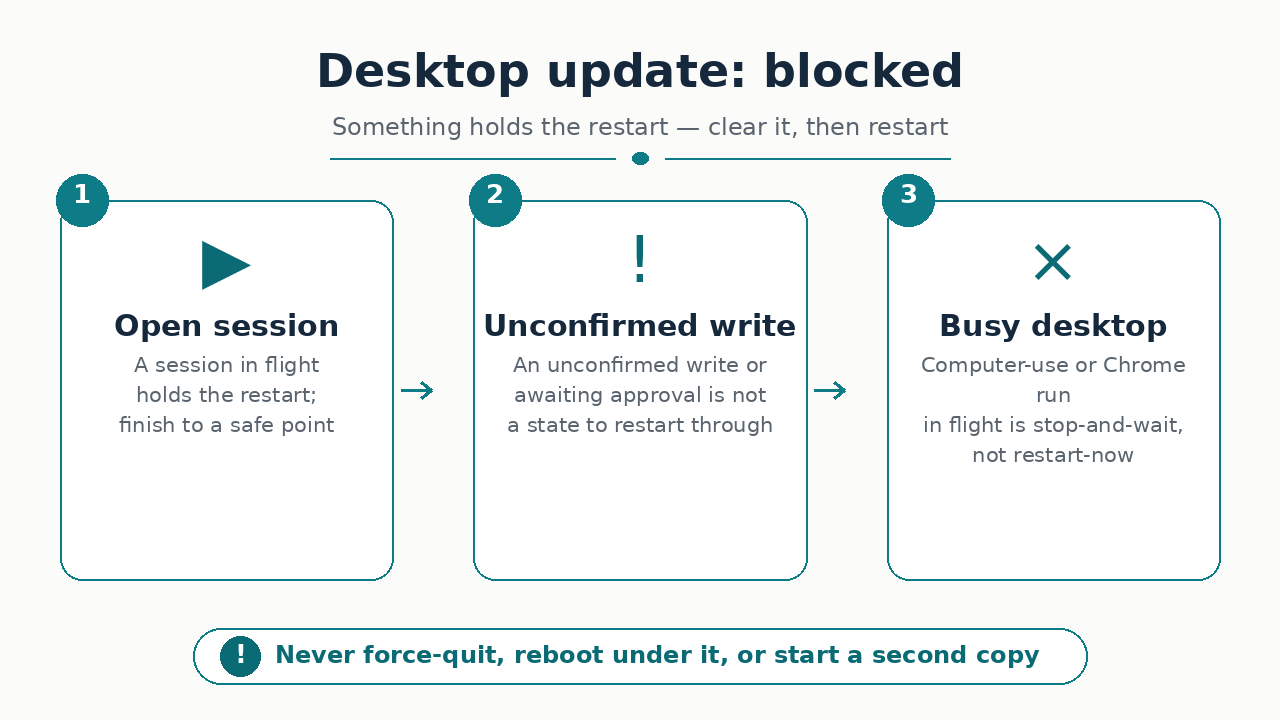
Section titled “Blocked: clear what holds the restart”- Blocked names its holder: whatever the notice says is holding the restart is the thing to clear — usually live work (an open session, an unconfirmed write) or an unsatisfied condition. Clear it, then restart from the notice.
- Do not work around a block by relaunching mid-update, rebooting the Mac underneath it, or starting a second copy. The block is protecting in-flight state; going around it creates the conflict the restart was avoiding.
- On shared hardware, restart only your own app session and confirm no one else’s work is live on that desktop first.
Retry (P1): recovering a failed update
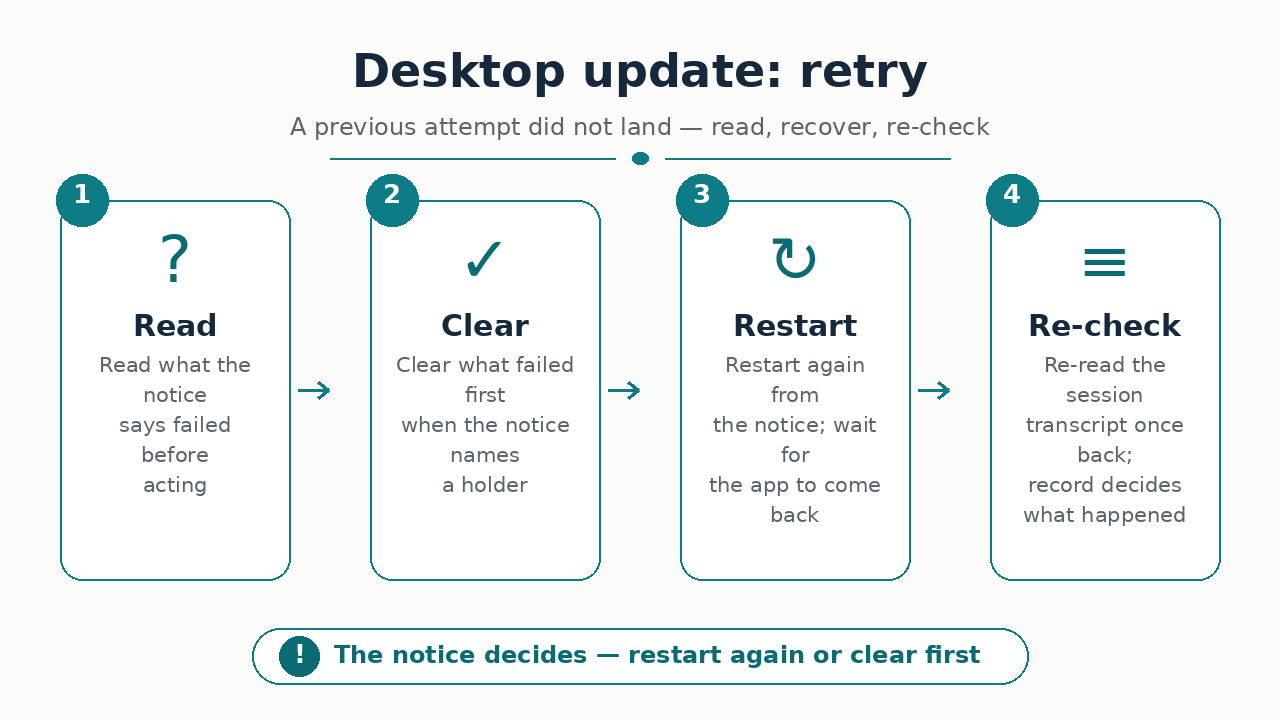
Section titled “Retry (P1): recovering a failed update”- Retry means a previous attempt did not land. Read what the notice says failed before acting — the notice decides whether the fix is simply restarting again or clearing something first.
- If a session was open across the failed update, re-read its transcript before continuing once the app is back. The recorded outcome decides what already happened, never assumed app state.
After the restart
Section titled “After the restart”- Confirm the app reopened on the right tenant hostname before starting work. Update restarts do not change tenants, but an unfamiliar landing after any restart is a hostname check, not a data problem.
- Anything odd after the update (missing tools, unfamiliar chrome, failed launches) starts at User troubleshooting with the app version and what the notice said.
What next
Section titled “What next”- User troubleshooting: the symptom-first fixes when the app misbehaves after an update.
- Working with sessions: the session rhythm that makes restarts safe (one goal, recorded outcome).
- Computer use: the desktop-bridge surface that must be idle before a restart.
- Chrome browser: the local-Chrome claims that must be released before a restart.